Downloads

Free utilities and tools you can download. SHA-256 hashes included so you can verify integrity. I have been writing these (with AI assistance) in Go (which is why they are so large). Compressing them makes AV give false-positive reports. They are digitally signed with my free certificate, not a real certificate. This website is mostly for my own use when I am working with customers. The software below is free, you can use it for personal or business purposes. I may post the source code if requested.

StickyNotes
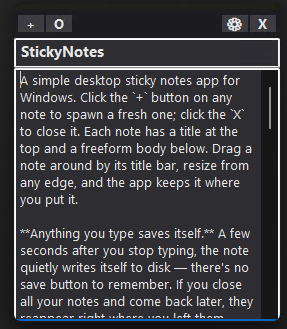
A simple little sticky notes utility. It allows pinning notes to be always on top and hiding from the taskbar. It keeps version history. Here is an AI generated description: # StickyNotes A simple desktop sticky notes app for Windows. Click the `+` button on any note to spawn a fresh one; click the `X` to close it. Each note has a title at the top and a freeform body below. Drag a note around by its title bar, resize from any edge, and the app keeps it where you put it. **Anything you type saves itself.** A few seconds after you stop typing, the note quietly writes itself to disk — there's no save button to remember. If you close all your notes and come back later, they reappear right where you left them. Closing a blank note just makes it go away with no fuss. **A safety net for everything you write.** Every save also keeps a copy of the previous version, so if you accidentally erase a paragraph you wanted to keep — or even clear an entire note and close it — you can get it back. Right-click any note's title bar and pick **View history** to browse old versions side-by-side with the current one. You can either bring an old version back into the current note (the current state automatically becomes a new history entry, so it's always reversible) or "promote" the old version into its own brand new note. **Make each note feel like yours.** Click the gear icon to open settings: pick a background color from a palette of pastels, make the note translucent, pin it always on top, hide it from the taskbar, or switch to dark mode (it auto-picks dark or light based on your Windows theme). One handy option, "opaque with focus," lets a translucent note become fully solid while you're typing in it and fade back when you click away. New notes you create from another note inherit its look — so if you set up one yellow always-on-top note, the next one you spawn from it will match without any extra configuration. **Find any note again.** The open dialog (the `O` button) shows a list of all your notes with a friendly date and a preview pane that displays the title, the body, and the note's own color. Tick "Show old versions" to also see every previous version of every note, including history from notes you've already deleted — nothing is lost without your explicit say-so. A delete button is there too, with a confirmation, so you can prune notes you no longer want. **It stays out of your way.** A small icon lives in the system tray; left-click it for a new note, right-click for the Open and Quit menu. The whole app is one self-contained .exe with its own icon — drop it anywhere on your computer and run it.
6.1 MB · 17d ago · 7
View & download
ScanLAN is a Windows-only network monitoring desktop application written in Go that gives you a single-pane view of what's happening on and around your machine's network. It's organized as a tabbed window with four primary monitoring surfaces — LAN, Traceroute, DNS, and Bandwidth. The LAN tab continuously discovers devices on the local subnet (ARP-based scan, ICMP ping aging, port-scan results, and mDNS printer-service queries every 60 seconds), then renders them with IP, MAC, hostname, device-class guess, ping success/fail counts, history sparkline, and discovered open ports. You can mark IPs as "watched" and have the app beep on failure. The Traceroute tab discovers the path to a target (default 8.8.8.8), then pings every hop once per second, surfacing per-hop loss%, last/min/avg/max RTT, jitter, stddev, P50–P99.9 percentiles, ASN/org lookup, and a history sparkline; it auto-rediscovers every 5 minutes and retries every 30 seconds if the previous discovery didn't reach the target. The DNS tab probes the locally-configured plus a curated list of public resolvers once per second using rotating test domains, exposing the same RTT/percentile statistics as the Traceroute tab, plus a manual "resolve domain or URL" lookup field. The Bandwidth tab samples interface counters. A real-time graph at the top shows in/out throughput. Spike alerts (≥5× the 5-min average) post to the Status log. The Adapters tab shows IPv4/IPv6/CIDR/Gateway, MAC, MTU, link speed, throughput min/avg/max, totals, disconnect counter, time connected/disconnected, and full Wi-Fi details (SSID, AP BSSID, channel, frequency, auth, radio, signal%, RSSI). It also draws an RSSI-over-time graph.
7.4 MB · 19d ago · 13
View & download
Scan4Remote - Scan for Remote Access Tools and RMM
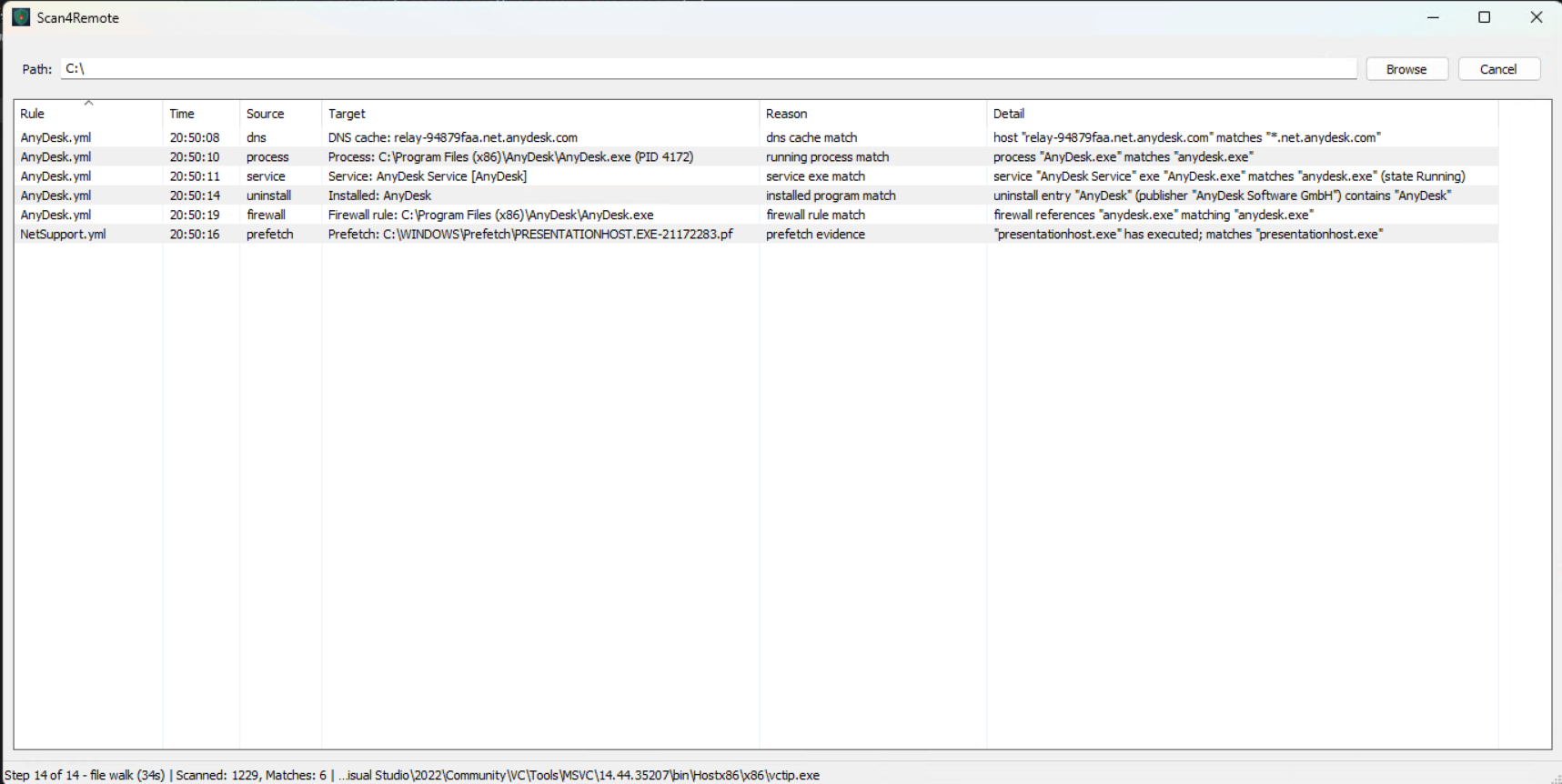
This is a simple little application which scans for remote access utilities on a computer. It scans All .exe files in the folder you specify, it searches based on filename, path name, and the publisher of the file. It also checks some registry locations, It is It downloads the list of YML files from this repo and uses them as a basis for searching. https://github.com/LivingInSyn/RMML/tree/main/RMMs I asked Claude AI to give me a summary of features and use, here it is: Scan4Remote is a Windows GUI tool for finding remote-access and remote-management software on a system, intended for technicians who need to verify that a machine isn't being controlled — sanctioned or otherwise — by a third party. It's built around the open-source LivingInSyn/RMML definition catalog, which describes 27 commercial and open-source remote tools (TeamViewer, AnyDesk, ScreenConnect, NinjaRMM, ngrok, Tailscale, and so on) by their executable names, code-signing certificates, and known network endpoints. On launch the app fetches the current YAML definitions from GitHub if the machine is online, falling back to whatever's on disk if not, so detections stay current without bundling a stale rule set. The detection itself runs in fourteen layers per scan. A file-tree walk inspects every .exe under the chosen path, matching each one by basename, by Authenticode signer subject (so a renamed copy of TeamViewer.exe still trips on its "TeamViewer GmbH" cert), and by PE version-resource fields like OriginalFilename and CompanyName. Thirteen system-level checks then look at running processes, Windows services, scheduled tasks, the installed-programs registry, autorun keys, listening and established TCP connections, the prefetch directory, the Amcache hive, firewall rules with attached programs, network adapters, signed drivers, WMI persistence subscriptions, and the recent DNS resolver cache. Together these turn up tools that are installed but not running, running but not on disk, uninstalled but recently executed, or only visible by their network footprint. The UI is straightforward — a path entry with Browse, a Scan/Cancel button, and a sortable results grid showing rule, detection time, source category, target, reason, and detail for each hit. Right-clicking the grid offers "copy selected" (formatted blocks for tickets) and "copy all" (tab-separated for spreadsheets). A status bar updates four times a second showing which of the fourteen steps is running, elapsed seconds in that step, and live counts during file walk; checkers that hang are automatically timed out at 60 seconds so a flaky WMI query can't lock the scan. A yellow banner appears at the top when not running elevated, listing the checks that will return incomplete results without admin (Prefetch, Amcache, scheduled tasks under SYSTEM, etc.). A configurable exception system suppresses known false positives. Out of the box it skips OneDrive cloud-only files and folders so opening them doesn't trigger downloads. The result is a tool you can point at C:\ on a tech-handoff machine and trust to surface real remote-access exposure without burying the operator in known-good Windows files.
10.3 MB · 18d ago · 12
View & download